

Adding Models
This section explains the steps to add Google Vertex AI models and configure the required access controls.1
Navigate to Google Vertex Models in AI Gateway
From the TrueFoundry dashboard, navigate to 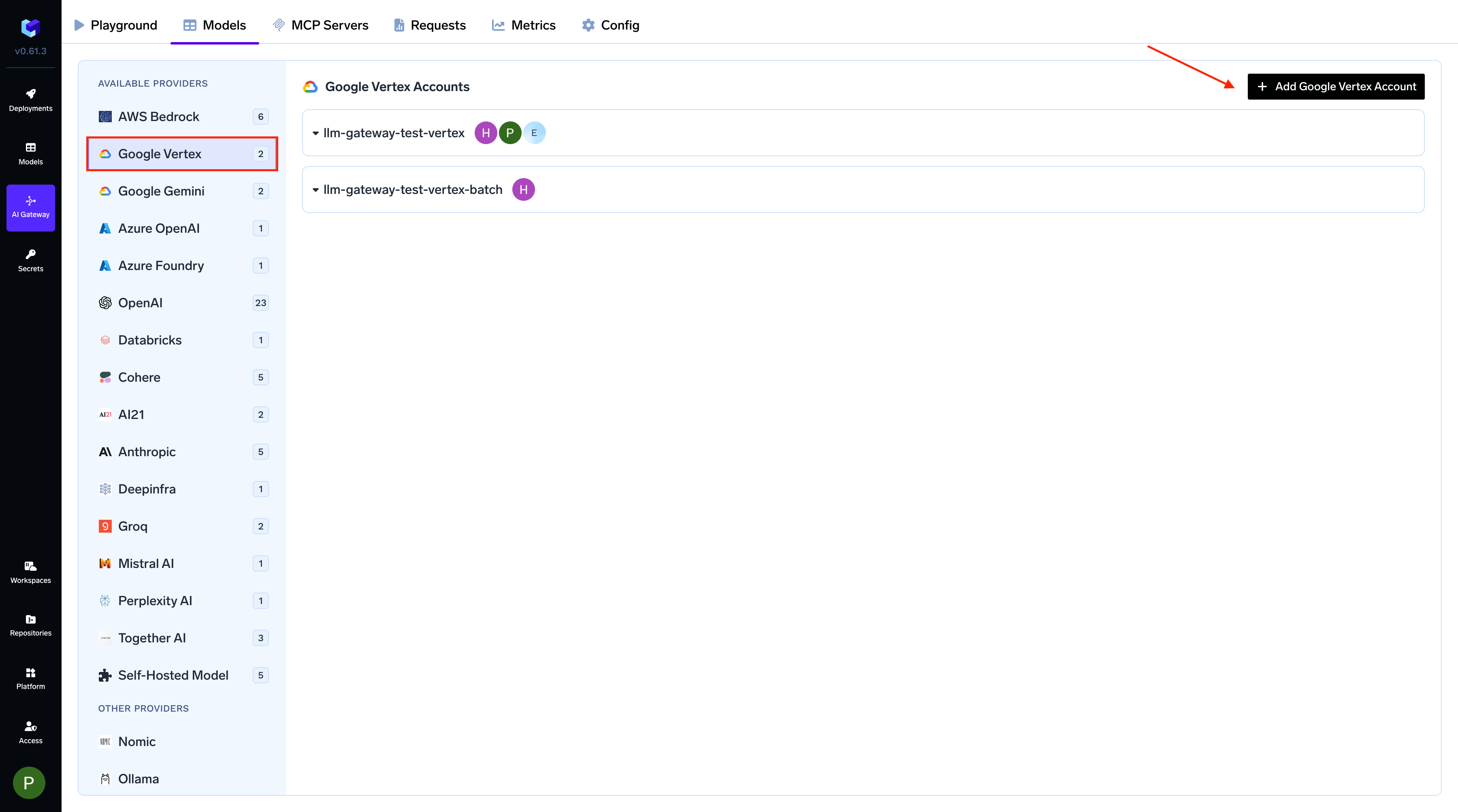
AI Gateway > Models and select Google Vertex.Navigate to Google Vertex Models
2
Add Google Vertex Account and Authentication
Give a unique name to your Google Vertex account. This will be used to refer to the models later. Add collaborators to your account, this will give access to the account to other users/teams. Learn more about access control here.
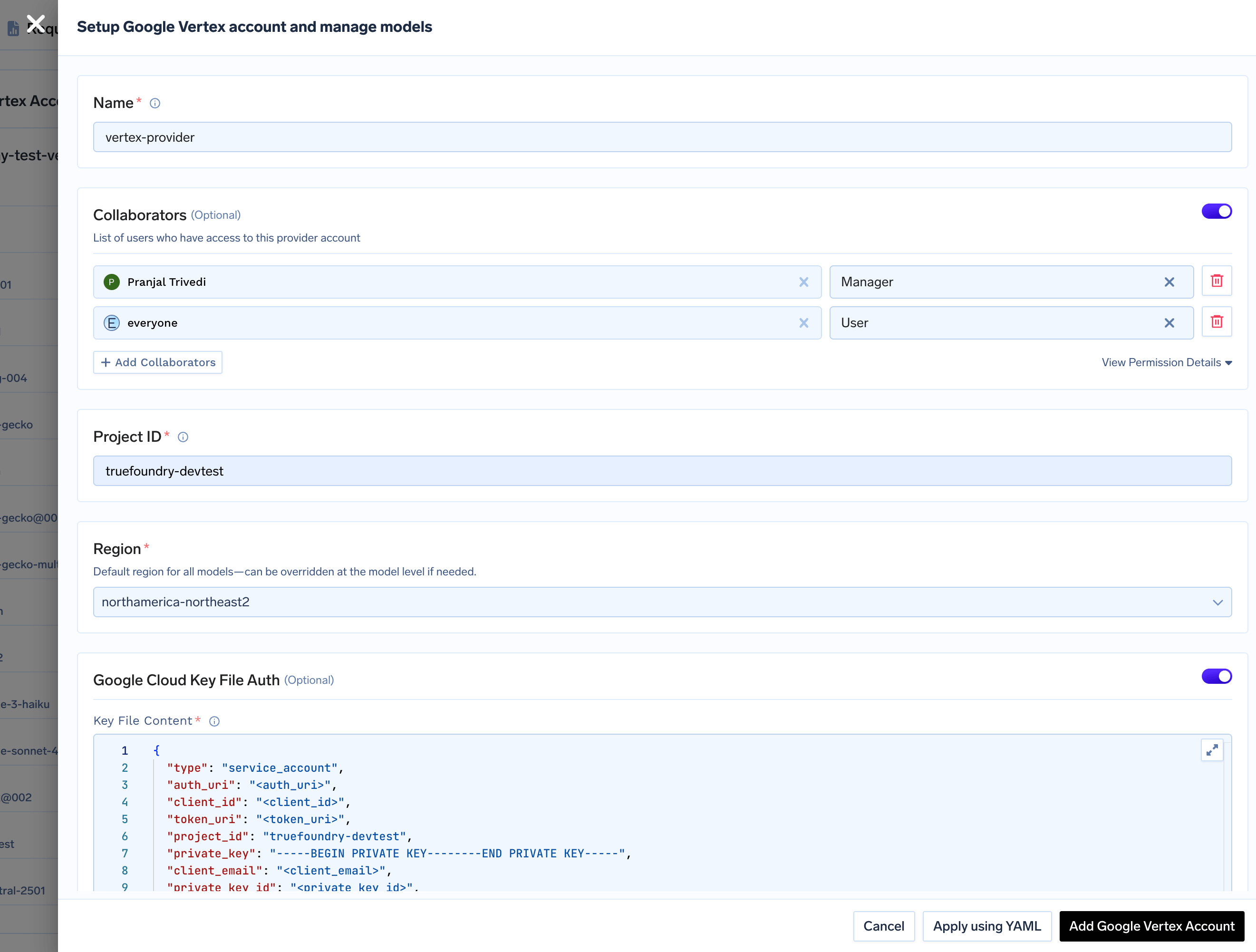
Get Google Vertex Authentication Details
Get Google Vertex Authentication Details
Required IAM RoleThe service account (whether using service account keys or Workload Identity) must have the To set up Workload Identity, follow the official Google Cloud documentation: Configure Workload Identity.When adding the Vertex AI provider account in TrueFoundry:
Vertex AI User role (roles/aiplatform.user), which includes the aiplatform.endpoints.predict permission required by the gateway.Using Service Account JSON KeyThis method works for all deployment types (GKE, on-premises, or other cloud providers).- Generate a Service Account JSON key by following the official Google Cloud documentation here.
- The service account must have the
Vertex AI Userrole, which includes theaiplatform.endpoints.predictpermission required by the gateway. - Use this JSON key content when adding the provider account in TrueFoundry.
Workload Identity is a GKE-specific feature that allows Kubernetes service accounts (KSA) in your GKE cluster to act as Google Cloud IAM service accounts (GSA). Pods using the configured KSA automatically authenticate as the associated GSA when accessing Google Cloud APIs, including Vertex AI.
- Leave the Service Account JSON field empty - the gateway will automatically use Workload Identity credentials
GCP Workload Identity will not work for SaaS version of Gateway. You must use Service Account JSON keys for SaaS Gateway.
Add Vertex Provider Account
3
Configure Project ID and Region
Provide your Google Cloud Project ID and a default Region for all models under this account. You can override the region for individual models later.Project ID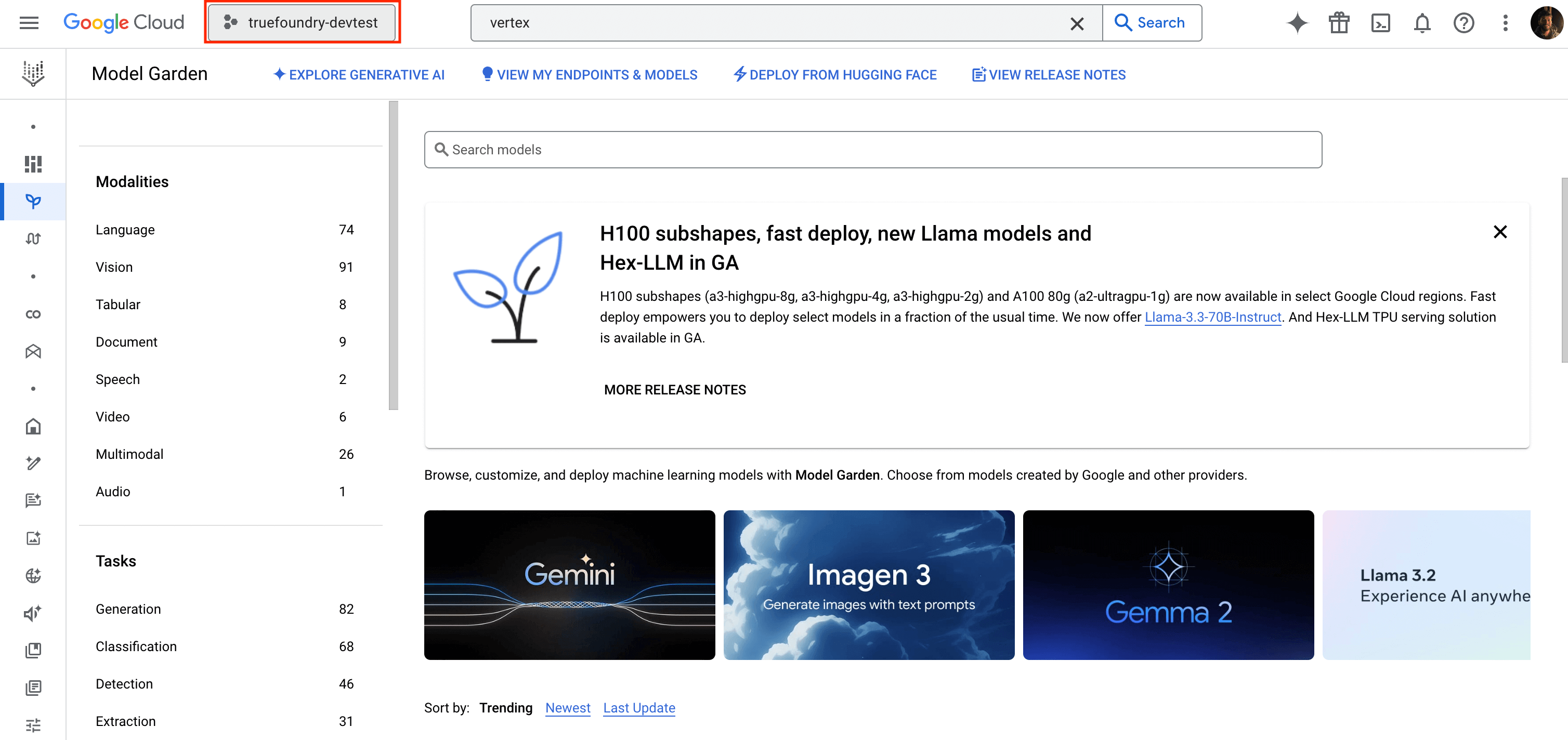
- You can find your Project ID in the top-right corner of your Google Cloud Console.
Finding your Project ID in Google Cloud Console
- Specify a default region for all models under this account. You can override this region for individual models later.
4
Add Models
You can either select available models from the list or add them manually by clicking
+ Add Model. When adding a model manually, the Model ID format depends on the provider.Adding Google (Gemini) Models
Adding Google (Gemini) Models
Select a Gemini model from the list or add it manually.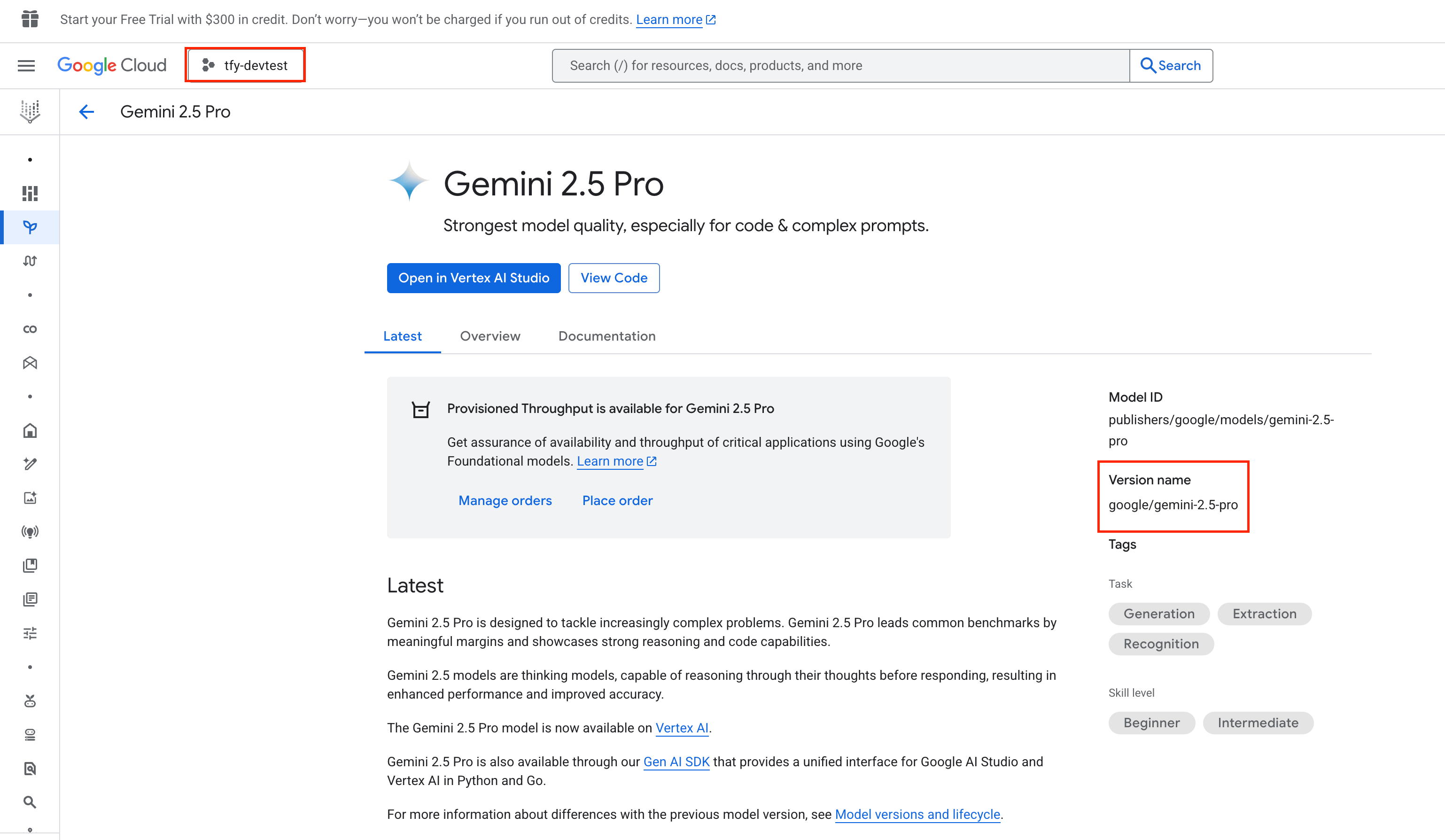
- Model ID Format:
google/<vertex-model-id> - Example:
google/gemini-1.5-pro
Find Gemini Model ID in Google Console
Adding Anthropic Models
Adding Anthropic Models
Select a Claude model from the list or add it manually.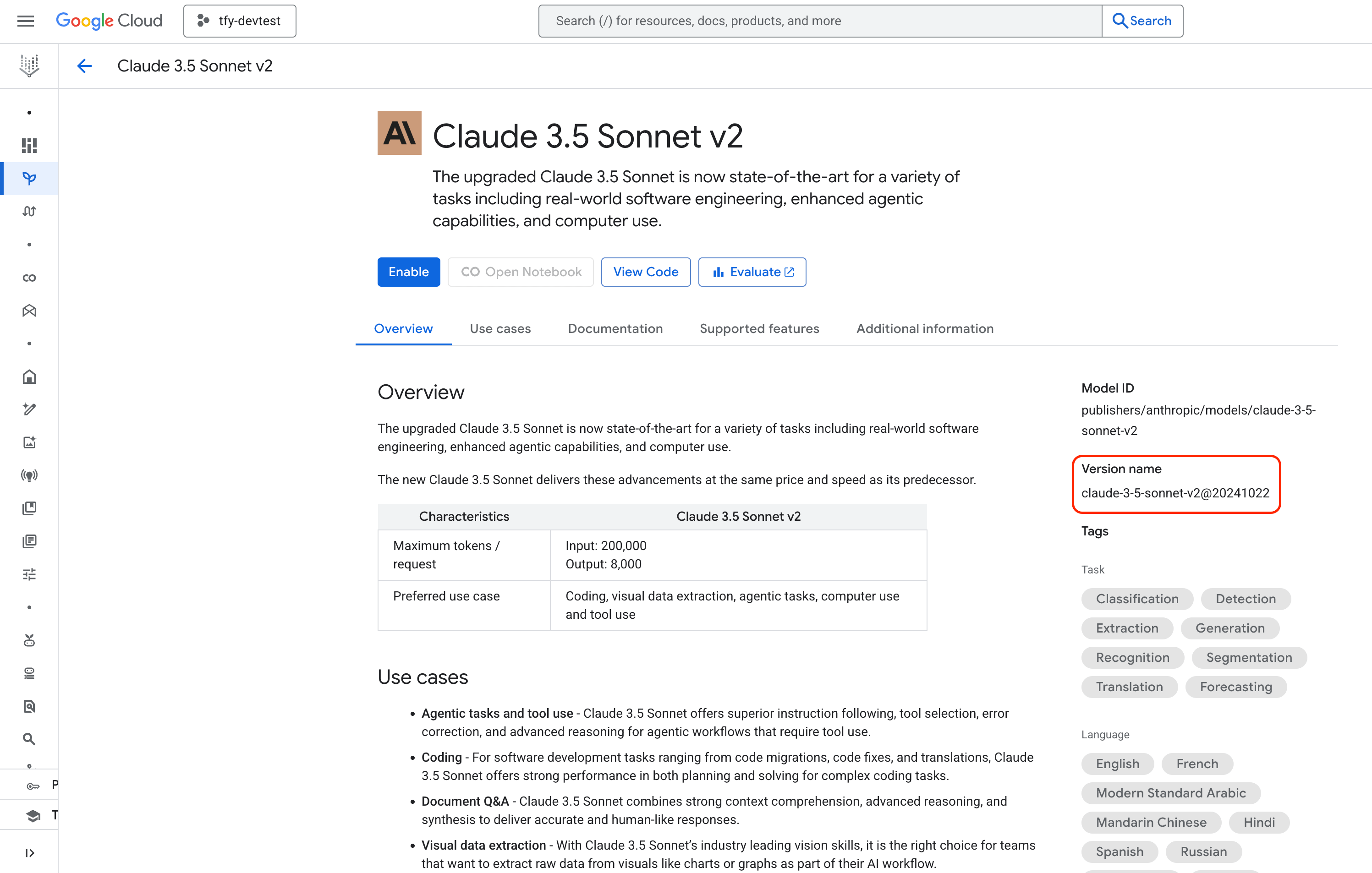
- Model ID Format:
anthropic/<vertex-model-id> - Example:
anthropic/claude-3-5-sonnet-v2@20241022
Find Anthropic Model ID in Google Console
Adding Mistral AI Models
Adding Mistral AI Models
Select a Mistral model from the list or add it manually.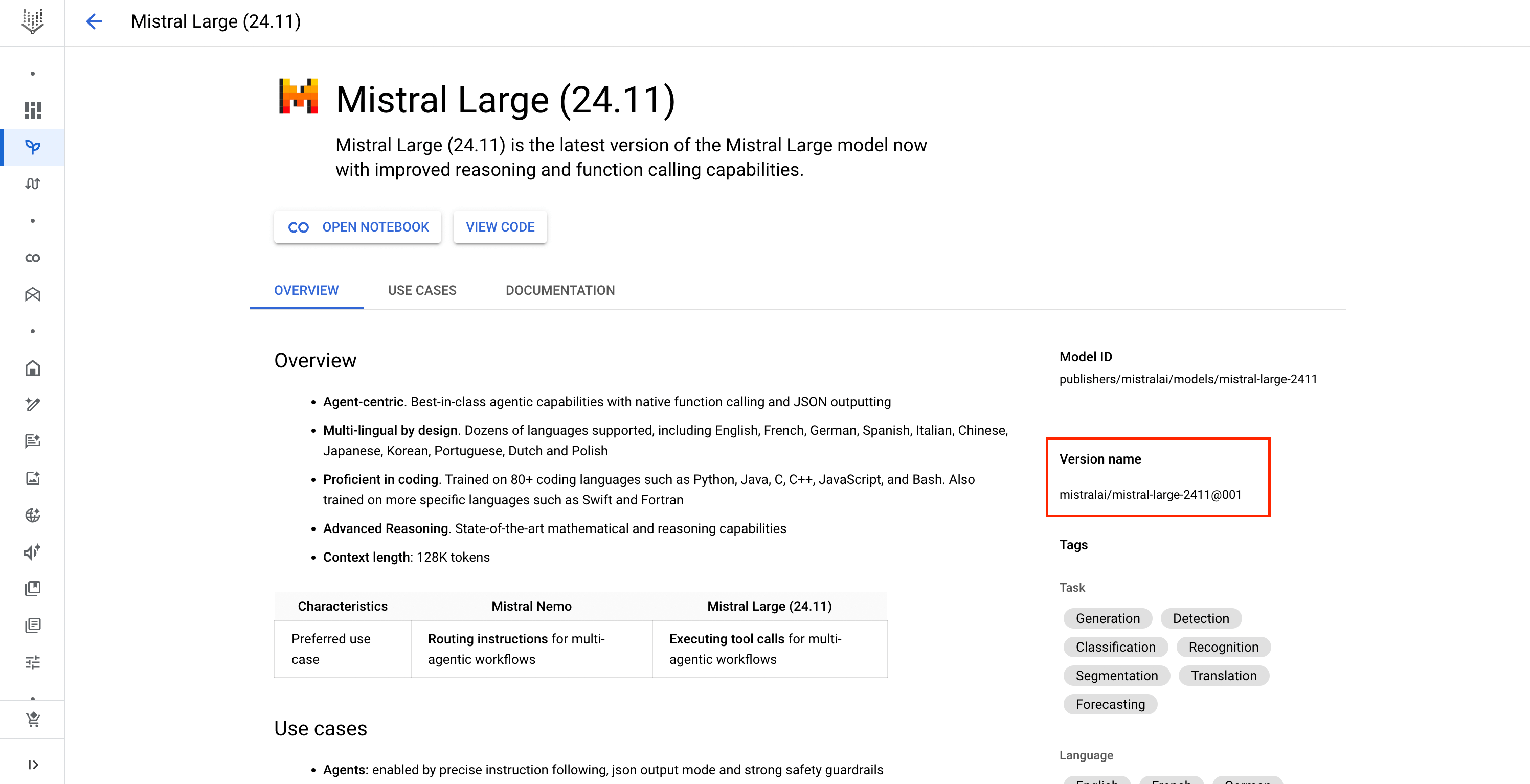
- Model ID Format:
mistralai/<vertex-model-id> - Example:
mistralai/mistral-large-2411@001
Find Mistral Model ID in Google Console
When adding any model manually, you can specify a Region to override the default one set at the account level.
Inference
After adding the models, you can perform inference using an OpenAI-compatible API via the Playground or by integrating it with your own application.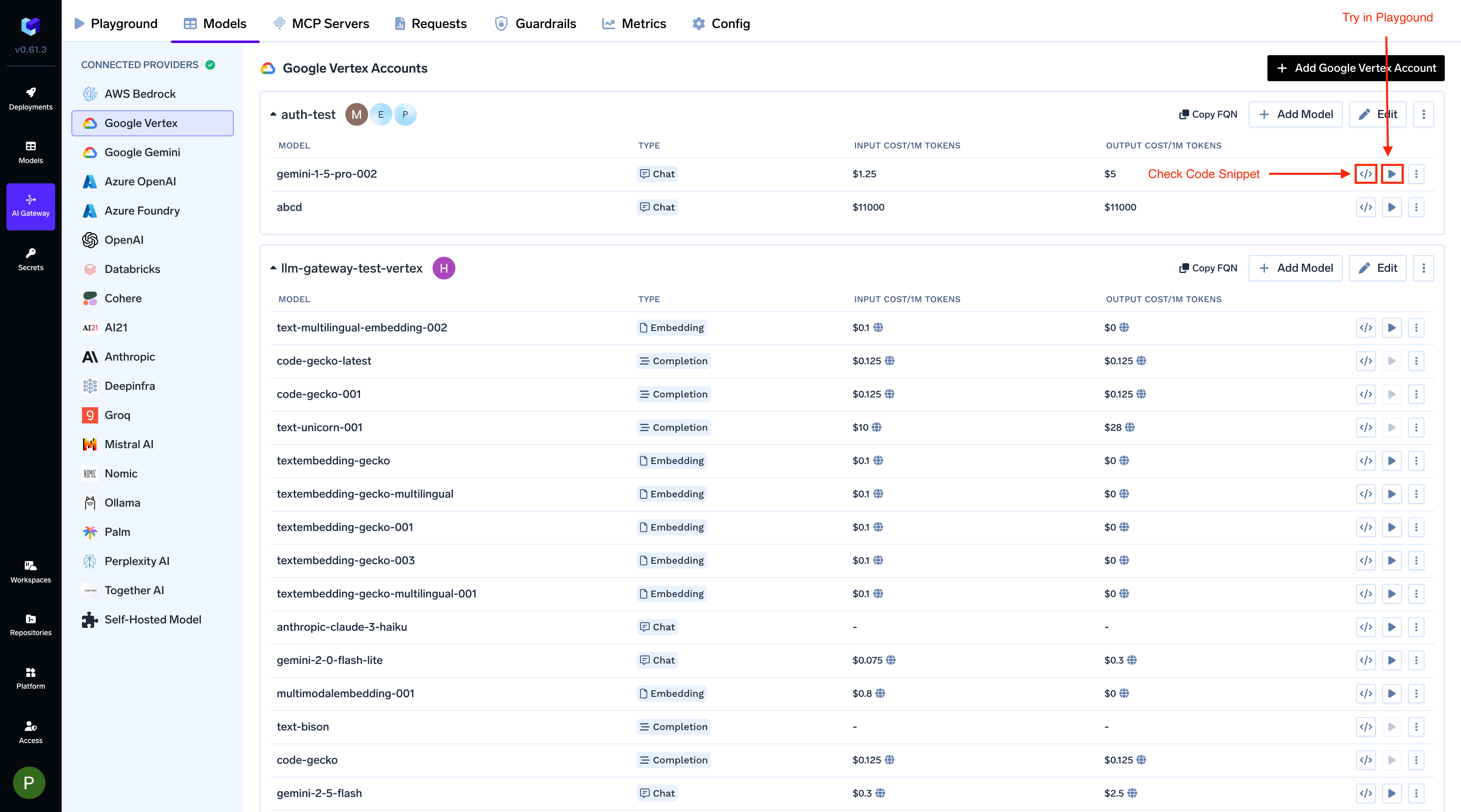
Infer Model in Playground or Get Code Snippet
FAQs
Do I need to add multiple provider accounts for different regions?
Do I need to add multiple provider accounts for different regions?
No. You can set a default region at the account level and override it for each individual model if needed. This allows you to use models from different regions with a single provider account.